Your mic works in every other app. Zoom hears you. Windows hears you. But Discord does not. When Discord Error 3002 hits, you see message that reads: “Well, it looks like Discord is not detecting any input from your mic. Let’s fix that! (Error: 3002)”
Discord can see your microphone is connected but receives zero audio from it. Discord uses WebRTC to handle voice communication, and any break in the path between your mic, your OS audio stack, and Discord’s voice service triggers this error.
This guide walks you through every fix for Discord Error 3002 on Windows, Mac, Linux, and browser, starting with the most common causes first.
Table of Contents
What Causes Discord Error 3002
Before fixing it, knowing the cause saves you time:
- Wrong input device selected inside Discord
- Microphone permissions blocked at the OS level (often reset silently after a Windows update)
- Input volume at zero inside Windows or macOS sound settings
- Another app has exclusive control of the mic
- Discord voice settings are misconfigured or corrupted
- Outdated or broken audio drivers
- Corrupted Discord cache files
- Browser mic permissions blocked (for Discord Web users)
- Mobile mic permissions denied (Android or iOS)
Quick Checks Before Advanced Fixes
Try these before going through the full fixes:
- Restart Discord fully (close from system tray, reopen)
- Unplug and reconnect your headset or microphone
- Go to Discord Settings, then Voice and Video, and confirm the correct mic is selected
- Open Voice Recorder or Zoom and test if the mic works there
If the mic works in other apps but not Discord, the problem is inside Discord or your system permissions. Continue below.
Fix 1: Select the Correct Input Device
The most common cause of Error 3002 is Discord defaulting to the wrong microphone. If you have a webcam mic, headset, USB mic, and built-in laptop mic all connected at once, Discord does not always pick the right one automatically.
- Open Discord and click the gear icon next to your username
- Select Voice and Video from the left sidebar
- Under Input Device, click the dropdown and manually select your actual microphone
- Speak into your mic and watch the Input Volume bar below. If it moves and turns green, Discord is detecting your voice
- Click Let’s Check under the Mic Test section to confirm audio comes through
If the green bar moves after switching the device, you are done. If nothing moves regardless of which device you select, continue to the next fix.
Fix 2: Enable Microphone Permissions
This is the second most common cause of Error 3002. Windows updates can silently reset mic permissions, which explains why Discord suddenly stops working even though it was fine before.
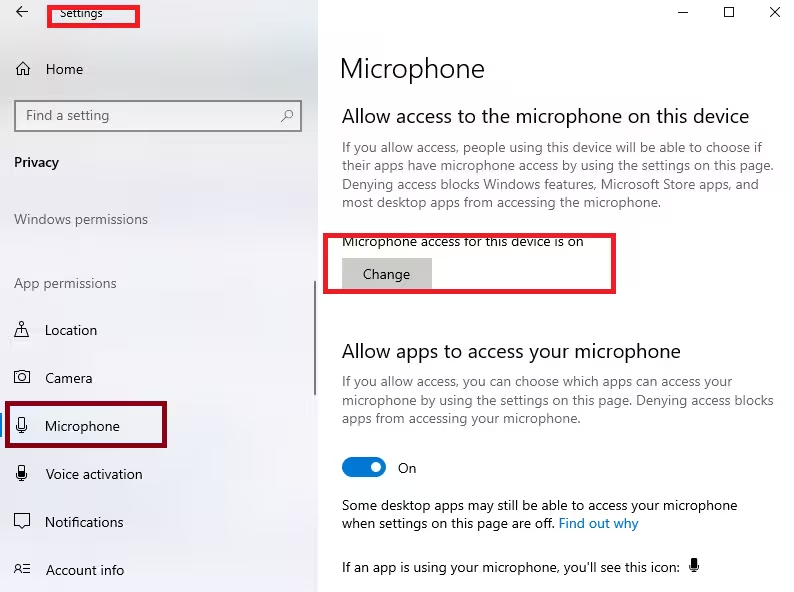
Windows 10 and 11:
- Open Settings and go to Privacy and Security, then Microphone
- Turn Microphone access ON
- Enable Let apps access your microphone
- Scroll down and confirm Discord is switched on
- If it was already on, toggle it off, wait five seconds, then toggle it back on to force Windows to refresh the permission
macOS:
- Open System Settings and go to Privacy and Security, then Microphone
- Find Discord in the list and make sure it is checked
- If Discord is not in the list, open Discord and accept the mic access prompt it shows
- Restart Discord after saving
Fix 3: Check Input Volume in Sound Settings
Discord Error 3002 frequently happens when the microphone input volume is at zero inside Windows or macOS, even if Discord has permission to use the mic.
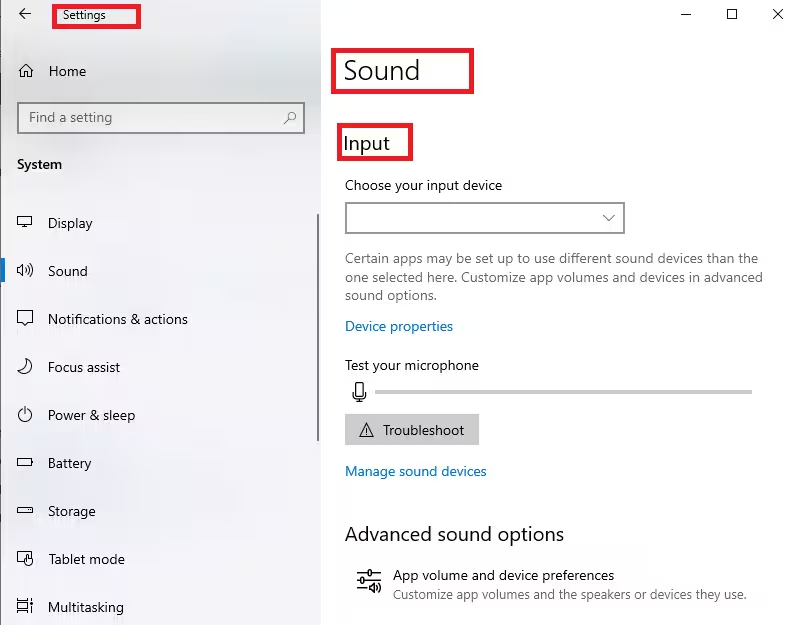
Windows:
- Right-click the speaker icon in the taskbar and select Sounds
- Go to the Recording tab
- Right-click your microphone and select Set as Default Device
- Double-click the microphone to open its Properties
- Go to the Levels tab and drag the volume slider to 100. Make sure it is not muted
- Click OK, then restart Discord
macOS:
- Open System Settings and go to Sound, then Input
- Select your microphone from the list
- Drag the Input Volume slider up
- Check that the input level bar reacts when you speak
Fix 4: Disable Exclusive Mode (Windows)
Windows lets apps take exclusive control of a microphone, which locks other apps, including Discord, out entirely. This is one of the most overlooked fixes for persistent Error 3002 cases.
- Right-click the speaker icon in the taskbar and select Sounds
- Go to the Recording tab
- Double-click your microphone to open Properties
- Go to the Advanced tab
- Uncheck Allow applications to take exclusive control of this device
- Click OK and restart Discord
Fix 5: Reset Discord Voice Settings
Incorrect or corrupted voice settings inside Discord can block microphone input even when everything else is configured correctly.
- Open Discord and go to User Settings
- Select Voice and Video from the left sidebar
- Scroll to the bottom and click Reset Voice Settings
- Confirm the reset when prompted
- Reopen Discord, go back to Voice and Video, and reselect your microphone
This clears all custom audio configurations and puts Discord back to default. If a wrong setting was causing the error, this resolves it immediately.
Fix 6: Turn Off Noise Suppression and Audio Enhancers
Discord’s built-in noise suppression (powered by Krisp) and third-party audio software can intercept the microphone signal before it reaches Discord, especially on low-volume input devices.
Inside Discord:
- Go to Settings, then Voice and Video
- Find Noise Suppression and set it to None
- Disable Echo Cancellation temporarily to test
Outside Discord:
- Disable VoiceMeeter, Nahimic, Sonic Studio, NVIDIA RTX Voice, or any virtual audio mixer if you have one running
- Open Realtek Audio Console or your motherboard’s audio software and check that the microphone is enabled and not muted at the device level
- Check your antivirus settings and disable any audio monitoring or mic protection features temporarily
Re-enable them one at a time after testing to find which one was causing the conflict.
Fix 7: Update or Reinstall Audio Drivers
Outdated or corrupted audio drivers stop the microphone signal from reaching applications including Discord.
Windows:
- Press Win + X and open Device Manager
- Expand Audio inputs and outputs
- Right-click your microphone and select Update driver
- Choose Search automatically for drivers
- Restart your PC after the update
If automatic update finds nothing, go to your PC manufacturer’s support page (Dell, HP, Lenovo, ASUS) or your motherboard manufacturer’s site and download the latest audio driver manually.
Fix 8: Run the Windows Recording Audio Troubleshooter
Windows has a built-in tool that automatically detects and fixes common microphone problems.
- Open Settings and go to System, then Troubleshoot
- Select Other troubleshooters
- Find Recording Audio and click Run
- Follow the on-screen steps and apply any fixes it suggests
- Restart Discord after the troubleshooter finishes
Fix 9: Clear Discord Cache Files
Corrupted Discord cache can break audio device detection and cause Error 3002 to appear even when settings are correct.
Windows:
- Fully close Discord including from the system tray
- Press Win + R, type
%appdata%\Discord, and press Enter - Delete the Cache, Code Cache, and GPUCache folders
- Reopen Discord and log back in
- Go to Voice and Video settings and reselect your microphone
macOS:
- Quit Discord completely
- Open Finder, press Cmd + Shift + G, and go to
~/Library/Application Support/discord - Delete the Cache and Code Cache folders inside it
- Reopen Discord
Fix 10: Test Discord in a Browser
If the desktop app is not working, testing Discord Web helps identify whether the problem is the app or your system.
- Open Chrome or Edge and go to discord.com
- When prompted, allow microphone access
- Join a voice channel and check if your mic works
- If the browser shows a mic icon blocked in the address bar, click it and allow access
If Discord Web works but the desktop app does not, reinstalling the Discord desktop app is the next step. Download the latest version from discord.com, fully uninstall the current version first, then install fresh.
Fix 11: Check the Hardware and USB Connection
If your mic works on another device but not on your PC:
- Try a different USB port, preferably a rear port on desktops which has more stable power
- Avoid USB hubs without external power
- If using a USB microphone like the Blue Yeti or HyperX QuadCast, check the manufacturer’s website for firmware updates or dedicated driver software required for full compatibility
- If using an audio interface, power-cycle it and check its input gain knob
- Test with a different microphone or headset to rule out hardware failure
Fix 12: Fix Discord Error 3002 on Mobile (Android and iOS)
Discord Error 3002 can also appear on the mobile app when microphone permissions are blocked at the system level.
Android:
- Open Settings and go to Apps
- Find and tap Discord
- Tap Permissions, then Microphone
- Set it to Allow only while using the app or Allow all the time
iOS:
- Open Settings and scroll down to Discord
- Tap Microphone and enable it
Restart Discord after granting permission.
Discord Error 3002 on Linux
Open pavucontrol (PulseAudio Volume Control) from your applications menu or by running pavucontrol in the terminal. Go to the Recording tab, start a voice call or open the Mic Test in Discord, and confirm Discord is routing to the correct input device and not a null or monitor device.
If you are on PipeWire, run pw-top in the terminal to see active audio streams and confirm Discord is routing to the correct input.
On GNOME, also check Settings > Privacy > Microphone and make sure access is enabled.
Flatpak users: Microphone access is additionally sandboxed on Flatpak installations. Run this command to grant mic access:
flatpak override --user --device=all com.discordapp.DiscordThen restart Discord.
When Nothing Works
If Discord Error 3002 persists after all fixes:
- Confirm the mic works in at least one other app
- Note your OS version, microphone model, and Discord version
- Take a screenshot of your Voice and Video settings
- Submit a support request at discord.com/support with those details
How to Prevent Discord Error 3002 in the Future
- Keep Discord updated so voice settings and permissions stay compatible
- Keep audio drivers updated, especially after Windows major updates
- After any Windows update, check Privacy and Security > Microphone to confirm permissions were not reset
- Log out and back into Discord if you notice mic issues starting after an OS change
FAQs
What is Discord Error 3002?
Discord Error 3002 means the app detected your microphone device but received no audio signal from it. It is caused by blocked permissions, muted input volume, incorrect device selection, software conflicts, or corrupted cache files.
Why does Discord show Error 3002 even though my mic works in other apps?
When the mic works elsewhere but not in Discord, the issue is usually Discord-specific. Check that Discord has microphone permission in your OS settings, that no other app has exclusive control of the mic, and that Discord voice settings are not corrupted. Resetting voice settings and clearing cache usually resolves this.
How do I fix Discord Error 3002 on Windows 11?
Enable microphone permissions in Settings > Privacy and Security. Confirm the correct input device is selected and input volume is not at zero. Reset Discord voice settings, update audio drivers, and clear Discord cache files if the problem continues.
Does Discord Error 3002 affect browser users?
Yes. On Discord Web, Error 3002 appears if the browser has microphone access blocked. Click the mic or lock icon in the address bar and allow access, then refresh the page.
Will reinstalling Discord fix Error 3002?
Sometimes. If the issue is caused by corrupted app files or broken settings, a fresh install helps. Always check OS permissions and system audio settings first before reinstalling.
Will clearing the Discord cache delete my messages or settings?
No. Clearing the Discord cache folders (Cache, Code Cache, GPUCache) removes temporary app data only. Your messages, servers, friends list, and account settings are all stored on Discord’s servers and will be intact when you log back in.

